Hi Guyys! If have some questions in your mind, don't hesitate to ask. :)
Byeee! Finals is coming up. So, it will take some time before my next post.
But don't expect that my next post will be posted here because I'll be posting some other stuff that teenagers could really ralate to. (exclude computers stuff) :)
Byeee! Hanggang sa muli! :D
/TaposNaRin
/Gatas
/020915
Saturday, 14 March 2015
GENERATIONS OF COMPUTER
Each Generation of Computer is designed based on the new technological development, resulting in better, cheaper
and smaller computers that are more
powerful, faster and efficient than their
predecessors.
1st Generation
Vacuum Tubes
Machine
language uses 0s and 1s for coding of the
instructions. The first generation
computers could solve one problem at a time. The computation
time was in milliseconds. enormous in size and required a large room
for installation. used vacuum
tubes for circuitry and
magnetic drums for
memory.
Examples: UNIVersal Automatic Computer
(UNIVAC), Electronic Numerical Integrator And
Calculator (ENIAC), and Electronic Discrete
Variable Automatic Computer (EDVAC).
2nd Generation
Transistors
The instructions were
written using the assembly language. The computation
time was in microseconds. smaller in
size compared to vacuum tubes. used magnetic
core technology for
primary memory. They
used magnetic tapes and
magnetic disks for
secondary storage.
Examples: PDP-8, IBM 1401 and CDC 1604.
3rd Generation
Integrated Circuits
The keyboard and the
monitor were interfaced through the operating
system. High-level
languages were used extensively for
programming, instead of machine language and
assembly language. The computation time
was in nanoseconds. quite small compared to the
second generation computers. multiple
transistors are placed on a
silicon chip.
Examples: IBM 370, PDP 11.
4th Generation
Microprocessors
Several new operating
systems like the MS-DOS and MS-Windows
developed during this time. This generation of
computers supported Graphical User
Interface (GUI).The computation time
is in picoseconds. smaller than the
computers of the previous generation. became widely available for
commercial purposes.
Examples: In 1981, IBM
introduced the first computer for home use. In 1984, Apple
introduced the Macintosh.
5th Generation
Artificial Intelligence
The goal of fifth generation computing is to
develop computers that are capable of
learning and self-organization. The fifth
generation computers use Super Large Scale
Integrated (SLSI) chips that are able to store
millions of components on a single chip. These
computers have large memory requirements. The fifth generation computers are based
on Artificial Intelligence (AI). They try to
simulate the human way of thinking and
reasoning.
Artificial Intelligence such as Expert System (ES), Natural Language
Processing (NLP), speech recognition, voice
recognition, robotics, etc.
CONVERTING
BINARY TO DECIMAL

DECIMAL TO BINARY

BINARY TO HEXADECIMAL

DECIMAL - HEXADECIMAL - BINARY

IN CONVERTING DECIMAL TO HEXADECIMAL OR VICE VERSA, CONVERT IT FIRST TO BINARY THEN DO THE SAME PROCEDURE.
Questions? Just ask. ;)
/GottaBeStrong
BINARY, DECIMAL, HEXADECIMAL.
Sick of Math? I SUPER FEEL YOU!
But be sick no more! Because when it comes to converting binary or decimal or hexadecimal, its just a piece of cake! I think... *Note: I am not good in Math tho. XD*
But before anything else, what is Binary? Decimal? Hexadecimal?
BINARY is a number that only includes ONES and ZEROS. A number that could be at any length. Also called as BASE-2.
DECIMAL is the numbers that we are used to seeing. It is consist of number from 0 to 9.Also called as BASE-10.
HEXADECIMAL uses 16 distinct symbols, the symbols 0-9 to represent the value of zero to nine and the letters, A to F, to represent the number 10-15. It is in the BASE-16.
If want to learn how to convert binary to decimal, binary to hexadecimal, decimal to hexadecimal or vice versa of any of those three. Just stay tune. :)
/StayingStrongForSummer
But be sick no more! Because when it comes to converting binary or decimal or hexadecimal, its just a piece of cake! I think... *Note: I am not good in Math tho. XD*
But before anything else, what is Binary? Decimal? Hexadecimal?
BINARY is a number that only includes ONES and ZEROS. A number that could be at any length. Also called as BASE-2.
DECIMAL is the numbers that we are used to seeing. It is consist of number from 0 to 9.Also called as BASE-10.
HEXADECIMAL uses 16 distinct symbols, the symbols 0-9 to represent the value of zero to nine and the letters, A to F, to represent the number 10-15. It is in the BASE-16.
If want to learn how to convert binary to decimal, binary to hexadecimal, decimal to hexadecimal or vice versa of any of those three. Just stay tune. :)
/StayingStrongForSummer
HARDWARE SPECS
Hardware Specification
- this dictates the limits and maximum capabilities of a hardware/device on a given criteria or unit of measurement.
Common Computer Hardware Specs Criteria
- Main memory
- CPU Clockrate and Wordsize
- Second memory
- Video Memory
- GPU
- Audio Adapter
- Wireless/LAN Adapter
- Display Adapter
System Requirements
- minimum hardware specs/conguration of a computer to be to run a particular computer software. (e.g. Operating System)
Any clarifications? Just speak up. :)
(c) Sir Tom
/KakayaninNatin
TYPES OF COMPUTER
There are 3 types of computer: the Hybrid, Analog, and the Digital Computer.
The Digital computer still have sub-types namely: Super, Mainframe, Mini/Midrange, and Micro computer.
There's still 2 types of Micro computer, the Personal Computer (PC) and the Mobile devices such as our cellphone etc.
here are some pictures of a computer:

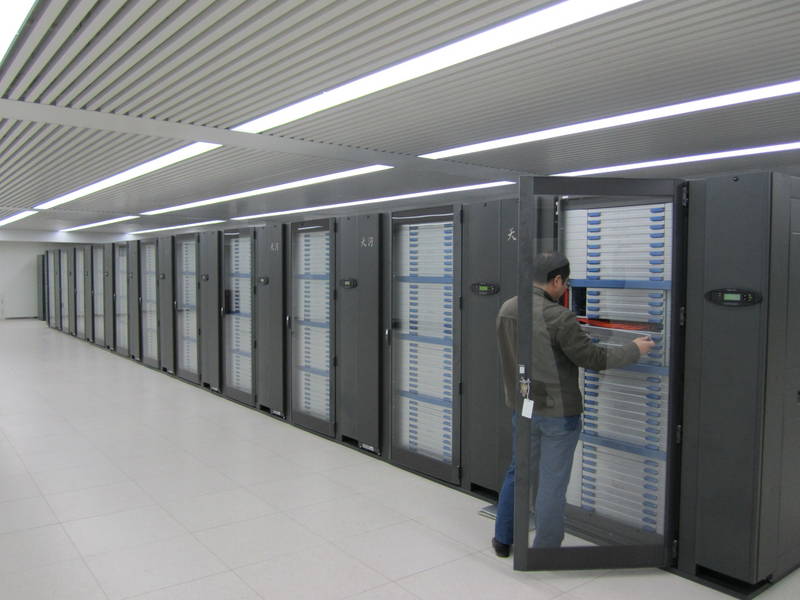


The Digital computer still have sub-types namely: Super, Mainframe, Mini/Midrange, and Micro computer.
There's still 2 types of Micro computer, the Personal Computer (PC) and the Mobile devices such as our cellphone etc.
here are some pictures of a computer:
SUPER COMPUTER
MAINFRAME COMPUTER

MIDRANGE COMPUTER
PERSONAL COMPUTER
MOBILE DEVICES
Got some questions? Just ask. :)
(c) Sir Tom
/KakayaninAngLahat
COMPUTER SYSTEM
So what is Computer System?
It is one that is able to take a set of inputs, process them, and create a set of outputs.
The Computer System is made up 2 main parts: the Hardware and the Software.
The hardware is made up of 3 parts namely:
It is one that is able to take a set of inputs, process them, and create a set of outputs.
The Computer System is made up 2 main parts: the Hardware and the Software.
The hardware is made up of 3 parts namely:
- Input and Output devices
- Central Processing Unit (CPU)
- Memory
While the software is made up of:
- Operating System (OS)
- Applications
You think the info is not enough or some details are incorrect?
Then just message me through my gmail acc and answer you questions. If questions is not unswered, I'll ask our oh-so-reliable teacher Sir Tom. Hi Sir! *kaway-kaway*
/QuestionsStillUnanswered
STORAGE DEVICES
4 Most Important Characteristics of Storage Materials:
- Speed and Access Time
- How fast information can be taken from or stored into the computer memory device's medium.
- Cost
- Memory goes larger and larger as price goes cheaper and cheaper.
- Capacity
- The amount of information that can be stored on the medium.
- Type Of Access
- Sequential
- Obtained by proceeding through the storage medium from the beginning until the designated area is reached. (as in magnetic tape)
- Random Access
- Direct access.
So that's it! :)
For more questions just ask me, and if I can't answer the question I'm gonna ask some help from our oh-so-reliable teacher Sir Tom. :)
For more questions just ask me, and if I can't answer the question I'm gonna ask some help from our oh-so-reliable teacher Sir Tom. :)
/KontingPushPa
Bit and Byte
Bit - smallest unit of data that a computer can use. It can be use to represent two states of information, such as Yes or No.
Byte - can represent 256 states of information. 1 Byte is equal to 8 bits.

Fact:
To put it in some perspective, a Terabyte could hold about 3.6 million 300 Kilobyte images or maybe about 300 hours of good quality video. A Terabyte could hold 1,000 copies of the Encyclopedia Britannica. Ten Terabytes could hold the printed collection of the Library of Congress.
source: Sit Tom's pdf. :)
/Kagat
this is a chart of bytes to bits.
Fact:
To put it in some perspective, a Terabyte could hold about 3.6 million 300 Kilobyte images or maybe about 300 hours of good quality video. A Terabyte could hold 1,000 copies of the Encyclopedia Britannica. Ten Terabytes could hold the printed collection of the Library of Congress.
source: Sit Tom's pdf. :)
/Kagat
DATA REPRESENTATION
2 Types of data stored in a computer:
- Original Data or Information
- Data introduced for the first time.
- Previously Stored Data or Information
- Data that is already processed in the computer and reserved for future use.
¬¬¬¬¬¬¬
DIGITIZING - a process of taking any visual image, audio recording, etc and converting it into binary form for the computer.
¬¬¬¬¬¬¬
Connecting hardware to the computer:
- Device Driver
- You have to install a software first for the system to read the particular device.
- Plug and Play
- No need for installation, just plug the device and now you're off!
So that's all for now. :)
/KontingPushPa
Friday, 13 March 2015
4th Quarter
Fourth Quarter is finally here. Waaah. This is the last quarter of being a G7. Oh how I wish to turn back time. :3
well, but before this quarter ends I need to finish my blog first. :3 Hue hue. :D
/CherishingTheLastQuarter
well, but before this quarter ends I need to finish my blog first. :3 Hue hue. :D
/CherishingTheLastQuarter
Saturday, 24 January 2015
Hopes
I am hoping that my grade in Kumsay will retain or will go higher. Well, I hope so.
/KeepingMyHopesUp
/KeepingMyHopesUp
What I've Learned
I have learned so many things this 3rd quarter regarding Excel. In the third quarter I learned new formulas and functions and I also learned how to use it. I learned how to make a multiplication table by just using one formula. I already know how to make a Macro and how to convert data into charts.
I learned so many things this quarter and I am looking forward to our next quarter and which is also the LAST.
/LookingForward
I learned so many things this quarter and I am looking forward to our next quarter and which is also the LAST.
/LookingForward
New Experience
Sir Tom went to the Sapphire Room.
The story behind is that. The power in Pisay went down. Yeah, there's a generator but it is not enough to power the whole ComLab, I think.
But it's very odd and new to the eyes to see Sir Tom standing in front of our class but in a different room. So yeah, I can't get over. XD
/CantGetOver
Friday, 16 January 2015
Errors
If you're a beginner in using the Excel maybe these symbols are pretty familiar with you:
- ####
- #DIV/0!
- #N/A – missing data/found no match
- #NAME? - undefined range or cell name
- #NULL! - two ranges that don’t actually intersect
- #NUM! - pass an invalid argument to a function
- #REF! - invalid cell reference
- #VALUE! - argument for a function is of an incorrect data type
You wanna avoid having these symbols in your spreadsheet? Then just practice and practice until you get the hang of it.:)
Fuctions
FUNCTION
– A predefined formula
– May require arguments as inputs
– Returns a value
– May be used together with other functions and other operations
Example
=PRODUCT(150,8)
=SUM(A1,A30)
=AVERAGE(B1:B5)
=COUNTA(A1:A101)
=NOW()
=MAX(Z2:Z7)
=MIN(Z4:Z12)
(c) Sir Tom
– A predefined formula
– May require arguments as inputs
– Returns a value
– May be used together with other functions and other operations
Example
=PRODUCT(150,8)
=SUM(A1,A30)
=AVERAGE(B1:B5)
=COUNTA(A1:A101)
=NOW()
=MAX(Z2:Z7)
=MIN(Z4:Z12)
(c) Sir Tom
FORMULA
Okay. I have already discussed to you the basics in using Excel. Let's now go to Formula.
FORMULA / FORMULAE
– an expression used to perform calculations
– begin with an equal ( = ) sign
– Composed of operands and operators
– May contain constants, cell references, ranges, and grouping symbols
Example of Formulas
=96*69
=R7+P7
=Boys–Girls
=A8=C2
=B1/B7-A4+E3*3
Operators Precedence In Formulas

FORMULA / FORMULAE
– an expression used to perform calculations
– begin with an equal ( = ) sign
– Composed of operands and operators
– May contain constants, cell references, ranges, and grouping symbols
Example of Formulas
=96*69
=R7+P7
=Boys–Girls
=A8=C2
=B1/B7-A4+E3*3
Operators Precedence In Formulas

Mixed Operation
=15>10
=5=2
=0<>0
=8+7-3*8>5+1
=15/3-1<>(4+2)*2
(c) Sir Tom
Cell Reference
Cell and Range
- A7 – single cell
- A7,A14 – cell A7 and cell A14
- A7:A14 – range from A7 to A14 (same col)
- A7:Z7 – range from A7 to Z7 (same row)
- A7:Z17 – range from columns A to Z and rows 10 through 17
Reference Types
- Relative - automatically changes when the formula is copied down a column or across a row
- Absolute - cell reference is fixed, doesn't change when copied to other cells.
*Uses $ sign like: $A$1 - Mixed - has either an absolute column and a relative row, or an absolute row and a relative column
*Like A$1 or $A1
Referencing from other the sheet
- Same file
– Manual selection
– Use a formula
Ex: Sheet2!A1 - Different file
– Manual selection
– Use a formula
Ex: [File2.xlsx]Sheet1!$A$1
Absolute by default
(c) Sir Tom
Data Types
DATA TYPES
- standardized representation for a particular kind of data.
- indicates the potential range of values we can store and the operations we could perform with them.
Kinds of Data Types:
- CURRENCY : -922,337,203,685,477.5808 to 922,337,203,685,477.5807 with four decimal digits of fixed precision.
- DATETIME: Valid dates are all dates after January 1, 1900.
- LOGICAL/Boolean – true or false
- NUMBER
– Whole Number from (-2^63) to (2^63-1)
– Decimal Number -1.79E +308 through -2.23E - 308, 0, 2.23E -308 through 1.79E + 308 - TEXT: 268,435,456 Unicode characters
(c) Sir Tom's Presentation. :))
More About..
Of course if you want to know how to you Excel, you have to first know the different/basic parts of it for easier use.

Basic parts of Excel and their usage:
An Excel File is called a WORKBOOK.
WORKSHEET is the page you work on which is made up of grid cells.
Cell/Selected Cell is where you type data into. Cells are arranged in numbered rows and lettered columns. You have to select a cell to add data to it data/formulae can also be typed into the formula bar.
Column/Row Heading use the column/row headings to identify a cells position on the worksheet, example A7, B17. Click heading buttons to select a whole column/row of cells.
Name Box holds a cell’s selected reference number – it’s position on the worksheet.

Basic parts of Excel and their usage:
An Excel File is called a WORKBOOK.
WORKSHEET is the page you work on which is made up of grid cells.
Cell/Selected Cell is where you type data into. Cells are arranged in numbered rows and lettered columns. You have to select a cell to add data to it data/formulae can also be typed into the formula bar.
Column/Row Heading use the column/row headings to identify a cells position on the worksheet, example A7, B17. Click heading buttons to select a whole column/row of cells.
Name Box holds a cell’s selected reference number – it’s position on the worksheet.
Well, there you have it, the different parts of Excel.
Saturday, 10 January 2015
Microsoft Excel
Our third quarter topics revolves around Microsoft Office Excel and how to use it.
First off, what is MS Excel?
Microsoft Excel is a spreadsheet application developed by Microsoft for Microsoft Windows and Mac OS. It features calculation, graphing tools, pivot tables, and a macro programming language called Visual Basic for Applications. It has been a very widely applied spreadsheet for these platforms, especially since version 5 in 1993, and it has replaced Lotus 1-2-3 as the industry standard for spreadsheets. Excel forms part of Microsoft Office.
(c) Wikipedia
Before, I thought that MS Excel is only used for computing grade or make a class roster because I only my mom using it for that purpose only. But I was wrong, as we tackled more about Excel, the more I learn about it.
Excel is not only used for computing games and other teaching related stuff but it is also used for many more things.
(c) Wikipedia
Before, I thought that MS Excel is only used for computing grade or make a class roster because I only my mom using it for that purpose only. But I was wrong, as we tackled more about Excel, the more I learn about it.
Excel is not only used for computing games and other teaching related stuff but it is also used for many more things.
3rd Quarter. Yeah.
Waaaah. T.T After this quarter, we're down to the last. Oh. No. T.T
It means harder topics especially in Kumsay, Math, and Soc Sci. Nooooo!! That can't be. Please bring me back to the first quarter. Puhlease? *puppy eyes*
But on the second thought, if we're near the last quarter, it means also that we're near VACATION! Woot! Woot!
It means harder topics especially in Kumsay, Math, and Soc Sci. Nooooo!! That can't be. Please bring me back to the first quarter. Puhlease? *puppy eyes*
But on the second thought, if we're near the last quarter, it means also that we're near VACATION! Woot! Woot!